Canon In-Camera File Organization: Card Settings, Folders, and File Naming
Disclosure: This post may contain affiliate links. I earn a small commission of product sales to keep this website going.
Before you start shooting with your Canon R-series camera, it's worth spending a few minutes configuring how your photos are named, where they're stored, and, if you have two card slots, how files are recorded to each one. Most of these are set-it-and-forget-it decisions, but some are best left at the defaults.

Dual Card Slot Recording (Two-Card Cameras)
If your camera has two card slots and you're using both, go to Setup Menu > Record Func+Card/Folder Sel to configure how files are distributed.
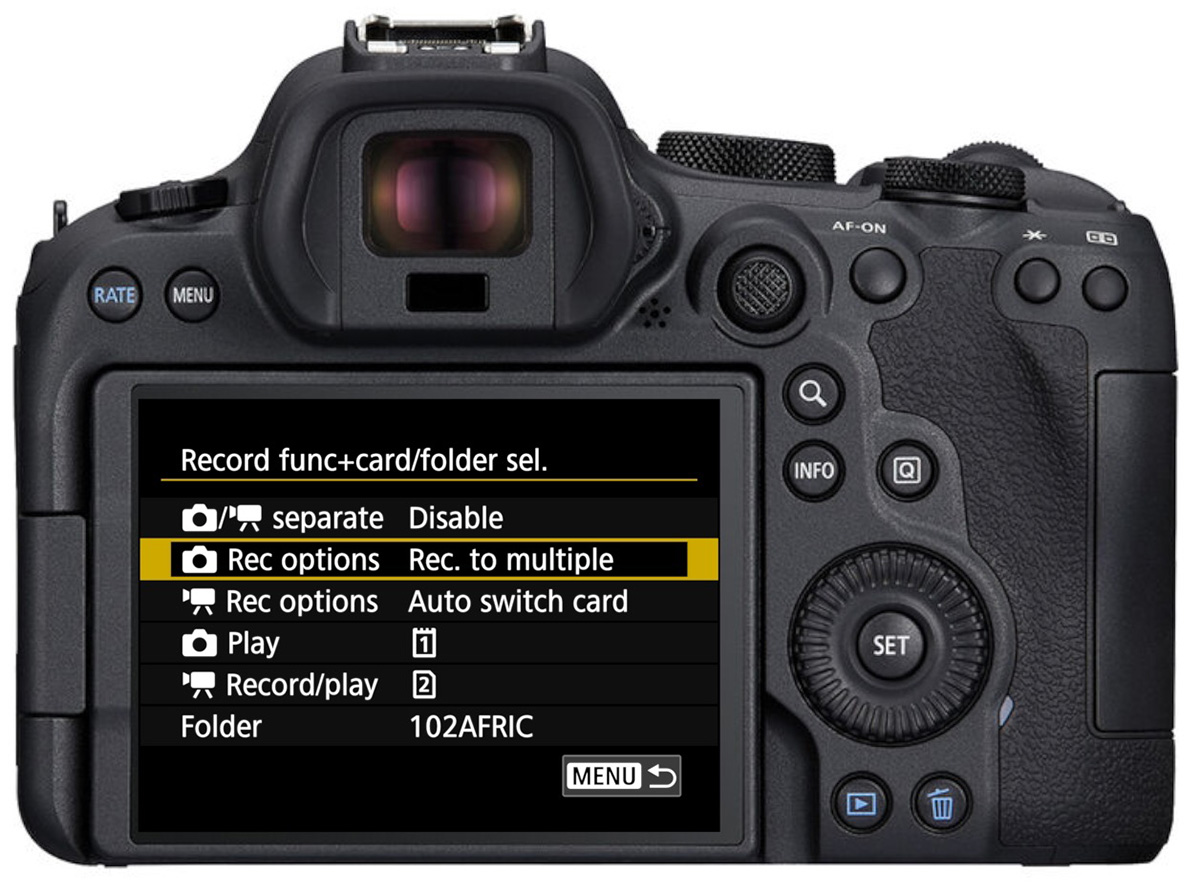
Default (Photo/Video Separate: Enable): Photos record to one card, movies to the other. Simple, automatic, and fine for most photographers. Both cards need to have free space for this to work.
Custom (Photo/Video Separate: Disable): Gives you additional recording options under Photo or Video recording options:
- Standard: Records to whichever card you designate as primary. When that card fills up, recording will stop. You'll get an error message rather than an automatic overflow. Not recommended for most situations.
- Auto Switch Card: Same as Standard, but when the primary card fills up, the camera automatically switches to the secondary card. This is a great choice for most casual and hobby photographers.
- Record Separately: Records different image qualities to each card. Useful if you want, say, RAW on one card and JPEG on the other.
- Record to Multiple: Both cards receive identical files simultaneously. This is a true real-time backup. If one card fails, you have a complete copy on the other.
Which to choose: For paid or commissioned work where losing images has serious consequences, Record to Multiple will give you some peace of mind. For personal and casual photography, Auto Switch Card keeps things simple. Memory cards are quite reliable these days.
The Record/Play option (available with the Standard or Auto Switch Card) lets you designate which card is the primary card for both recording and playback. If you're using Record Separately or Record to Multiple, you'll see a Play option instead, which lets you choose the default card for reviewing images.
Folder Organization
Found under Setup Menu > Select Folder (or within the Record Func menu on dual-card cameras). Your image folders appear on the memory card with a five-digit name. They'll have a three-digit number prefix starting at 100, followed by a five-character name set by the camera. The camera automatically creates a new sequential folder (101, 102, etc.) whenever the previous one reaches 9,999 images.
Creating custom folders: Select Create Folder to add a new folder with the next sequential number. On cameras with a Change Folder Name option, you can also customize the five-character name. For an Africa trip, for example, typing "AFRIC" makes it immediately clear which photos came from that trip. Select any folder from the list to make it the active recording destination.
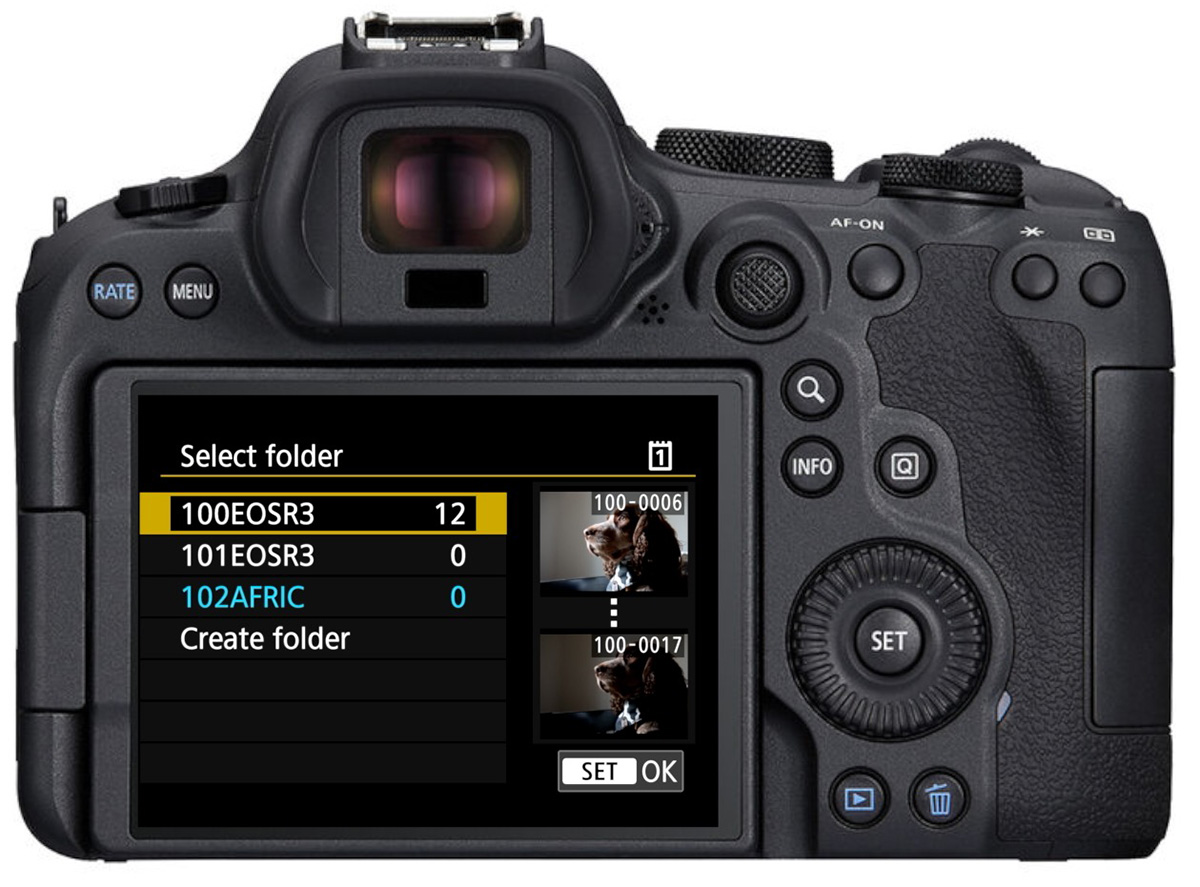
Honest recommendation: For most photographers, in-camera folder organization isn't necessary. Programs like Lightroom Classic, Capture One, and Photo Mechanic all make it easy to sort and organize photos during import on your computer. This is a more reliable workflow than maintaining folder discipline in the field. If you do want to use custom folders, create them in advance before a trip or event, add Select Folder to My Menu so you're reminded to update it at transitions, and have a clear plan for how you'll use them. Without a consistent system or discipline, it's easy to end up with photos in the wrong folders.
File Naming
Found in Setup Menu > File Name. By default, filenames start with a random four-character code followed by a sequence number. You can change that prefix:
- User Setting 1: Set a custom four-character prefix using the keypad
- User Setting 2: Set a three-character prefix. The fourth character is generated automatically based on image size
Once configured, you can select which naming convention you want applied to all subsequent photos.
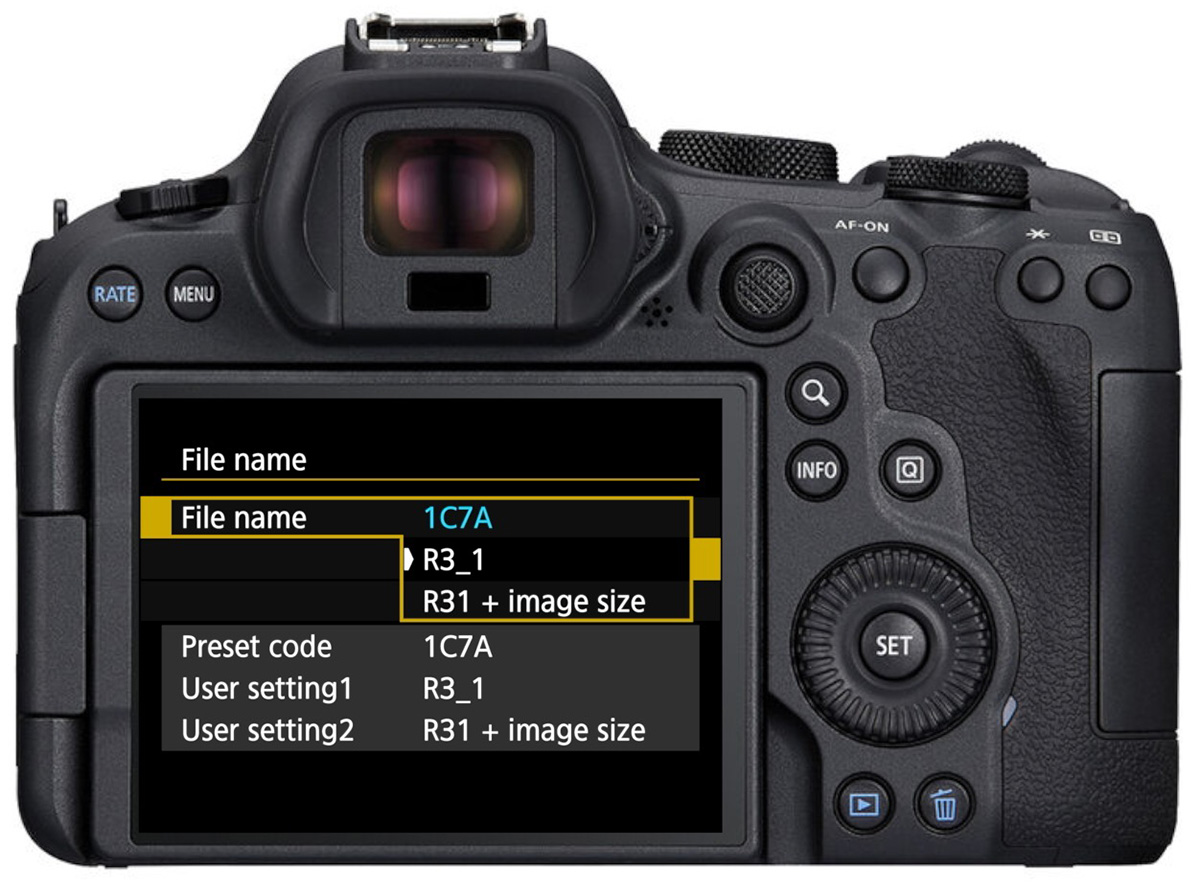
When this is worth it: The main use case is if you're using multiple cameras. If you're shooting with two Canon R bodies and plan to dump both cards into the same folder on your computer before culling, identical default filenames will create system conflicts. Assigning a unique prefix to each body, like "R3_1" and "R3_2," eliminates the problem. For single-camera photographers, leave it at the default and rename your files in post-processing software instead.
File Numbering
Found in Setup Menu > File Numbering. This controls whether the sequence number resets when you switch to a new folder or memory card.
- Continuous: Numbering carries over from the last image, regardless of folder or card changes. If the last photo was number 1801, the next one will be 1802, even with a freshly formatted card.
- Auto Reset: Numbering restarts at 0001 with each new folder or card. The risk here is that you can end up with multiple files named xxxx0001 across different cards or folders, which creates conflicts if they ever land in the same folder on your computer.
- Manual Reset: Forces numbering to restart at 0001 when selected. This is useful if you want a clean start for a new client or location.
Recommendation: Continuous. It keeps numbering unique across cards and folders, prevents filename conflicts, and requires no ongoing maintenance.
Quick Summary
| Setting | Recommended Option |
|---|---|
| Dual card recording (casual photography) | Auto Switch Card |
| Dual card recording (paid work) | Record to Multiple |
| Custom folders | Only if you have a clear plan and add to My Menu |
| File naming | Default, unless shooting with multiple cameras |
| File numbering | Continuous |
Want a complete walkthrough of Canon R-series camera setup, exposure modes, and focus systems? The Canon R Photography Fundamentals course includes video lessons, text outlines, downloads, quizzes, and assignments covering the full Canon R mirrorless lineup. Use code BLOG20 for 20% off.