How to Use Auto ISO on Canon R Series Cameras
Disclosure: This post may contain affiliate links. I earn a small commission of product sales to keep this website going.
One of the easiest ways to get sharper photos is to make sure your shutter speed is always fast enough to freeze movement. Auto ISO is one of the best tools for helping with that. Instead of manually adjusting ISO every time the light changes, you give the camera a range to work within and let it pick the right value for the situation. Here's how it works and how to set it up.

How Auto ISO Works
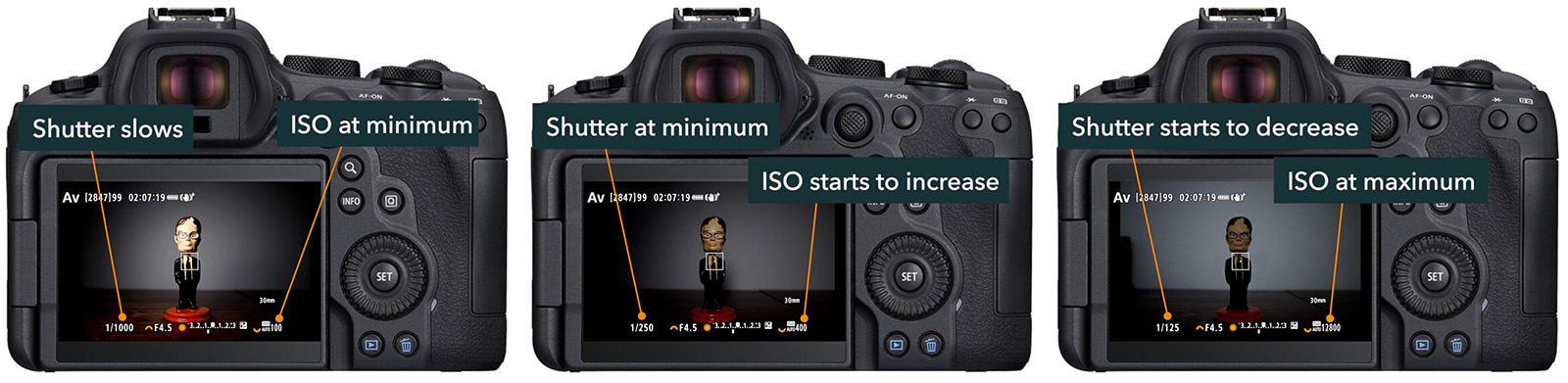
Auto ISO always tries to use the lowest possible ISO while maintaining a proper exposure. In Program Auto or Aperture Priority, where the camera also chooses the shutter speed, it can also maintain a minimum shutter speed. Here's how the sequence works:
- The camera starts at your programmed minimum ISO and lets the shutter speed vary to achieve correct exposure.
- When the shutter speed reaches your programmed minimum, it stops slowing down.
- As light continues to decrease, ISO begins to rise toward your programmed maximum.
- Once ISO hits its maximum, if light decreases further, the shutter speed will begin to drop below your programmed minimum to maintain exposure.
In Shutter Priority or Manual mode, the minimum shutter speed setting doesn't apply. Your chosen shutter speed takes over, and the camera only adjusts ISO within your programmed range to achieve proper exposure.
Don't Be Afraid of High ISO
Before getting into the setup, a word on ISO limits: don't set your maximum too low. A sharp photo with some noise is almost always more usable than a blurry photo at a clean ISO.
Your viewers aren't zooming in to 100% on a monitor looking for noise. They're looking at the composition, the colors, and the moment. On social media, web pages, and even in print, high ISO noise is far less noticeable than most photographers expect. Learn where your personal upper limit is by shooting test shots at various high ISO values in different lighting, and use that as your maximum. On Canon R cameras, ISO 6400 is a reasonable daily-use ceiling for most situations.

Programming Auto ISO
Go to the Shooting Menu (page 2) > ISO Speed Settings. Adding this submenu to your My Menu can save time by letting you access it quickly, without navigating the full menu system each time.
Setting the ISO range
On most Canon R cameras, select Auto Range, then set your minimum (leave this at 100) and your maximum (6400 is a good starting point for most people, but adjust it for your own preferences). Press OK to save.
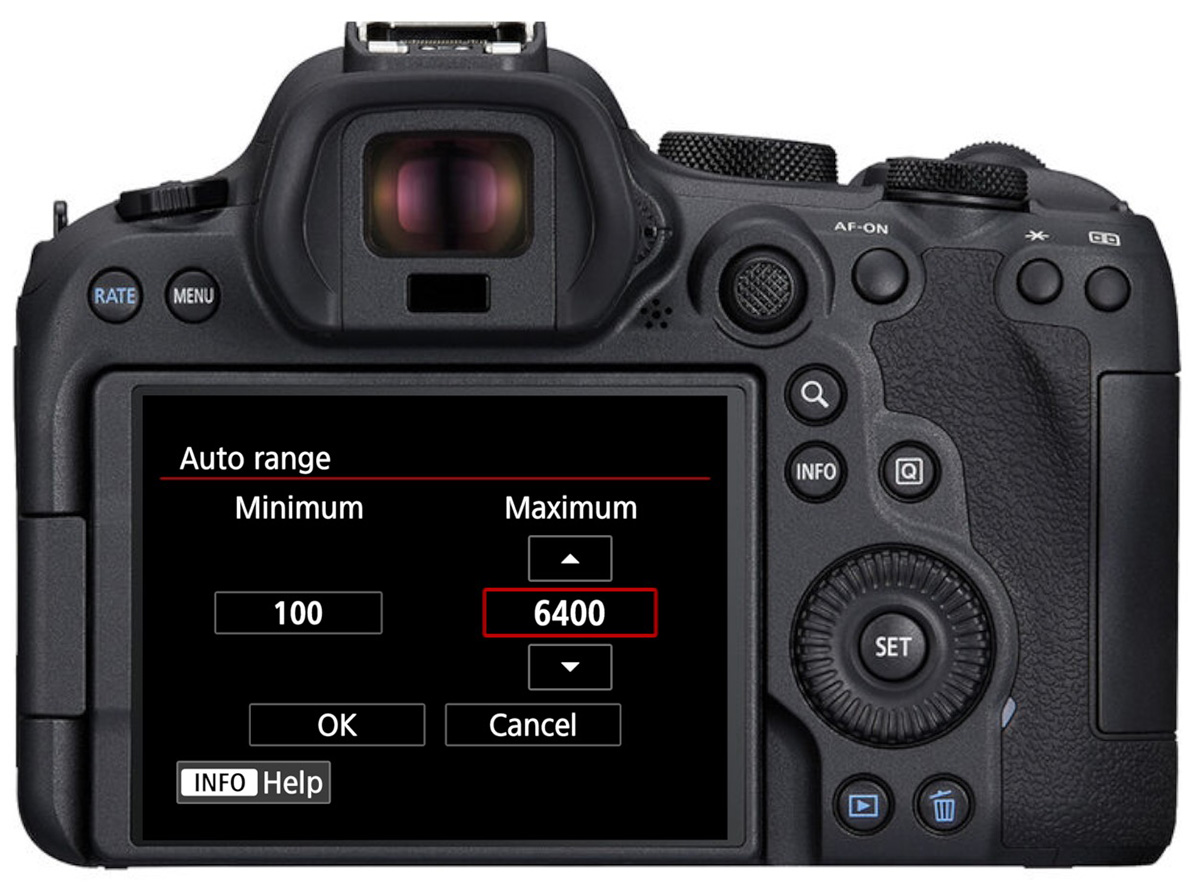
On older or more entry-level Canon R cameras, you may only see a Max for Auto option rather than a full range. Just set your upper limit there. The minimum defaults to 100 automatically.
Note: don't confuse the ISO Speed Range option with your Auto ISO range. They're different settings.
Setting the minimum shutter speed
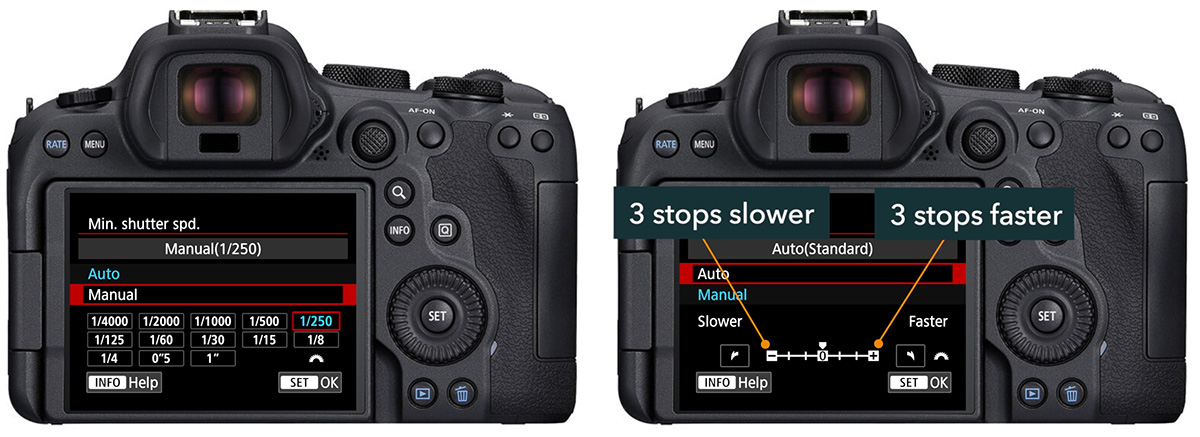
This option isn't available on all Canon R cameras, but where it is, it's good to change this based on what kind of motion you're typically trying to freeze:
- Everyday subjects/people: 1/250s is a good starting point
- Wildlife/sports: 1/500s or faster
- Birds in flight/faster action: 1/1000s or higher, depending on the speed of movement
If the only movement you're trying to freeze is your own shaking hands - you're shooting still subjects and nothing in front of your camera is moving - use the Auto option instead. Auto sets the minimum shutter speed based on your focal length: roughly 1/focal length for full-frame (e.g., 1/50s at 50mm, 1/200s at 200mm, etc.). Canon automatically adjusts this calculation for APS-C crop sensors.
The Auto setting also gives you offset options from -3 to +3 stops. As an example with a 50mm lens:
- Auto minus 2: slows the minimum shutter speed two stops below the focal-length default, helping maintain lower ISOs in dim light when you have image stabilization active, so it'd choose ~1/13s.
- Auto plus 2: raises the minimum two stops above the default, useful if subjects in front of your camera are moving, but at the cost of pushing ISO higher sooner. It'd choose 1/200s with a 50mm lens.
Enabling Auto ISO
There are several ways to enable Auto ISO:
- ISO Speed Settings menu > ISO Speed > Auto
- ISO button (or a custom button assigned to ISO) > follow on-screen instructions, usually the INFO button to toggle Auto
- Tap the ISO value on the touchscreen and select Auto
- Multi-function button + dial
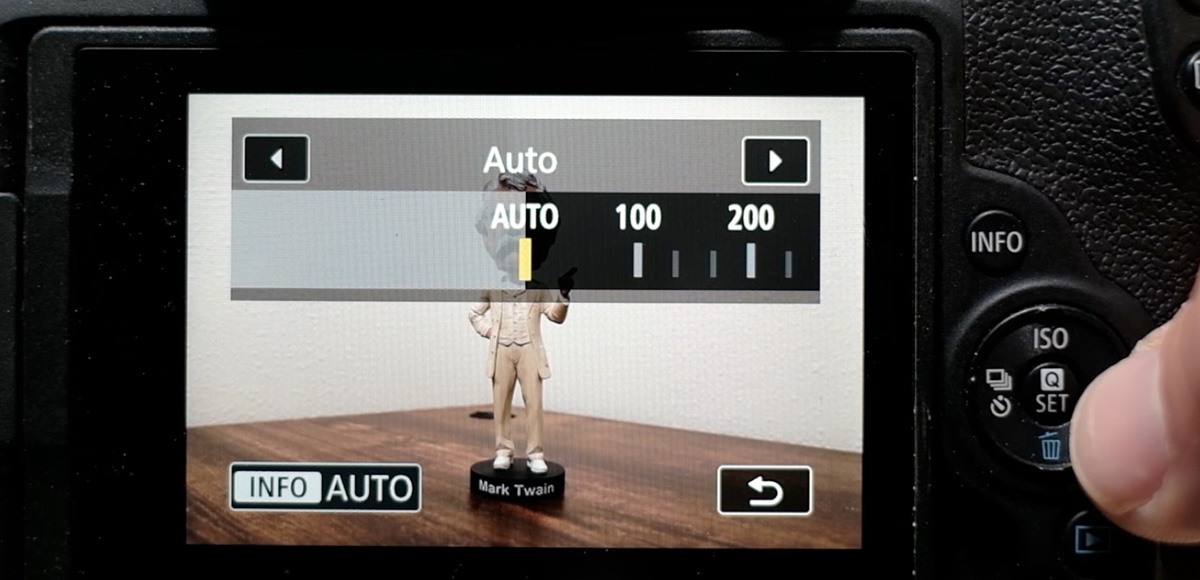
All of these same methods work to switch back to a manual ISO value when you don't want Auto.
While shooting with Auto ISO active, you'll see ISO Auto in the lower right of the display. Once the metering timer is activated by half-pressing the shutter or commanding autofocus, the display shows the calculated ISO value for that moment.
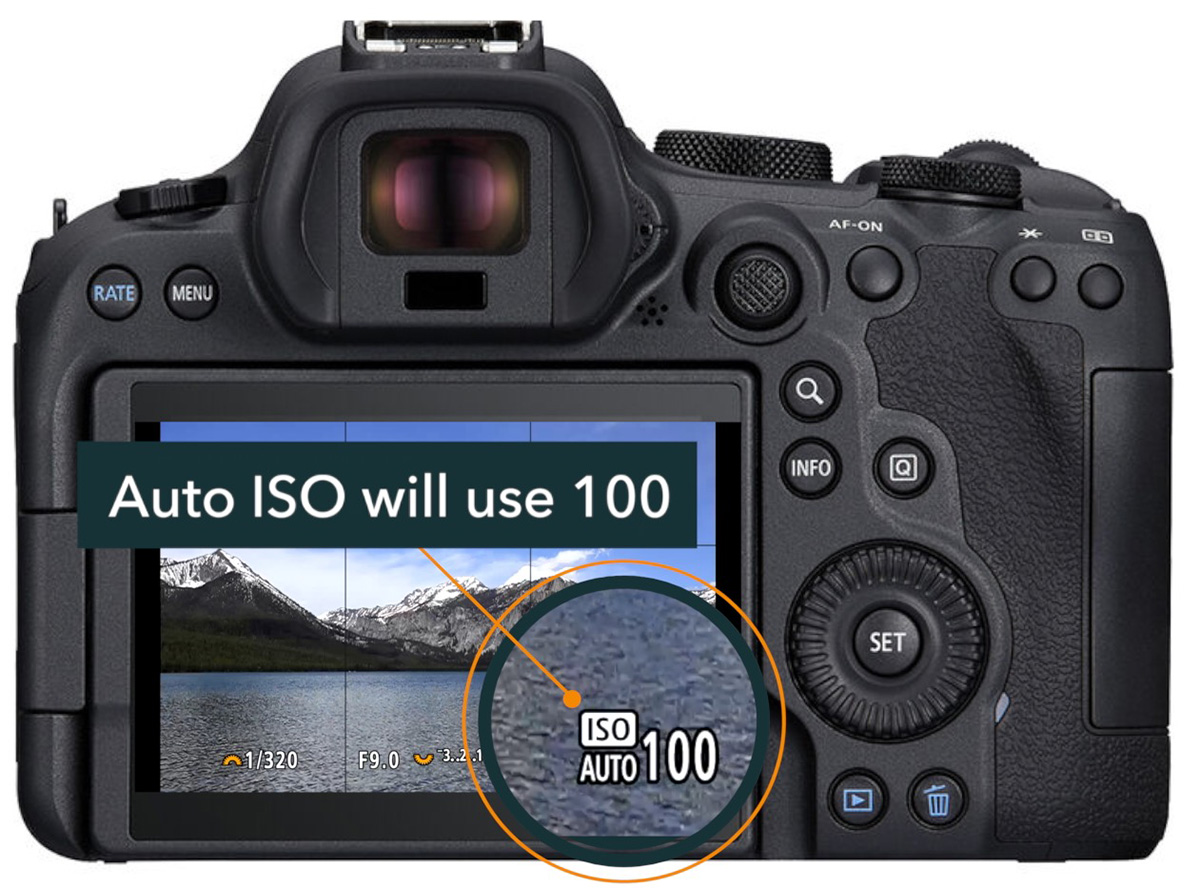
One thing to watch: there's no warning if your shutter speed drops below your programmed minimum in low light. Keep an eye on your shutter speed display when shooting in low light.
Quick Reference
| Situation | Recommended Minimum Shutter Speed |
|---|---|
| Still subjects/hand-shake only | Auto (focal-length based) |
| People, everyday life | 1/250s |
| Wildlife, sports | 1/500s |
| Birds in flight, faster action | 1/1000s+ |
| Mode | How Auto ISO Behaves |
|---|---|
| Program Auto/Aperture Priority | Shutter speed varies first, then ISO rises once minimum shutter speed is reached |
| Shutter Priority/Manual | Only ISO varies; minimum shutter speed setting is ignored |
Want to go deeper into Canon R camera setup, exposure modes, and the focus system? The Canon R Photography Fundamentals course covers it all with video lessons, quizzes, assignments, and downloads for the full Canon R mirrorless lineup. Use code BLOG20 for 20% off.