Nikon’s View Mode Setting: What You See vs What You Get
Disclosure: This post may contain affiliate links. I earn a small commission of product sales to keep this website going.
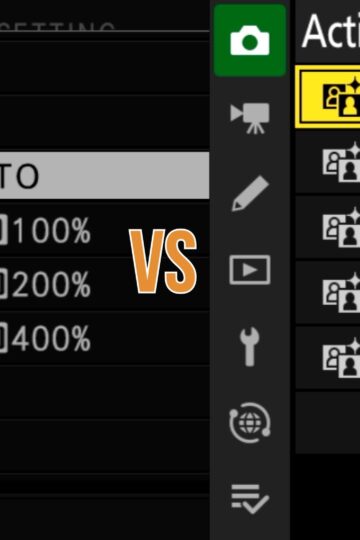
Newer Nikon Z cameras have a setting called View Mode, buried in the Custom Settings D group, that controls whether what you see in the viewfinder and on the monitor matches the photo you’ll actually get, or looks more like the optical viewfinder experience from a DSLR. Not many people know it's there, but it can be important to a lot of photographers.
Note: older cameras like the Zfc, Z6, and Z7 don’t have this exact menu. They have a setting called “Apply Settings to Live View” instead, which works mostly the same, but without the customization options.

Where to Find It
Go to Custom Settings → d (Shooting/Display) → View mode (Photo LV). You’ll see two options: Show Effects of Settings and Adjust for Ease of Viewing.
Show Effects of Settings
This does what it sounds like. Your viewfinder or monitor shows what your current settings will do to the final image. What you see in the live view roughly matches the processed file that gets saved to your card.
There are a couple of minor exceptions, like the film grain options on the Zf and Z5IIC, and the final Active D-Lighting adjustment, those aren't previewed. Everything else is, including the white balance, Picture Control, and exposure settings (aside from depth of field and slow shutter speed effects, which obviously can’t be simulated in real time).
When this is active, you’ll see a little camera icon next to “View” in your detailed info display.

Adjust for Ease of Viewing
This is the opposite. Changes to your white balance, Picture Control, and exposure settings aren't reflected on the screen. You’re looking at a more neutral, easier-to-see image regardless of what your settings are actually going to produce.
When this is active, that same display indicator switches to an eyeball icon.

The Sub-Options
Both of these have further settings underneath them.
Under Show Effects of Settings:
- Always: the camera continuously shows you what your settings will do, no matter what.
- Only When Flash Is Not Used: use this if you shoot in a studio with strobes and kill the ambient light. The moment a flash or trigger is attached to your hot shoe and powered on, the camera automatically switches to Adjust for Ease of Viewing so you can see your composition, since it's otherwise dark.

Under Adjust for Ease of Viewing:
- Auto: behaves as described above. No white balance, Picture Control, or exposure preview.
- Custom: opens three more options:
- White Balance: choose what white balance gets previewed in live view. You can choose from your current setting, Auto, or a manual Kelvin value. Most people will just leave this on Auto.
- Set Picture Control: shows you the effect of your current Picture Control setting (Standard, Vivid, Landscape, etc.) without showing exposure effects. This adds contrast and saturation to the live view image.
- Brighten Shadows: lifts the shadows in the live view by one of three levels, which can help a lot in high-contrast scenes where you’re struggling to see detail in dark areas. This has no effect on your actual recorded image; it’s purely there to help you see what you’re composing.


When to Use Which
If you’re recording JPEG or HEIF, whether that’s JPEG only or RAW plus JPEG, use Show Effects of Settings. You can’t change a JPEG after it’s recorded, so you'll want to see what's recorded before you press the shutter.
If you’re using strobes and kill the ambient light, set Show Effects of Settings to Only When Flash Is Not Used, so the camera shows your composition instead of a dark screen.
Even if you’re shooting RAW only, Show Effects of Settings is still useful just to see how bright or dark your exposure is going to come out. You might not care about white balance or Picture Control previews, but exposure feedback is one advantage of a mirrorless camera.
If you’re coming from a DSLR background and you’re used to metering, like spot metering off bright clouds, setting a known exposure value for portraits, that kind of thing, you can use Adjust for Ease of Viewing and keep working the way you always have. It just means you need to be proficient with that metering approach, since you won’t get a brightness preview.
In dark environments or high-contrast scenes, Adjust for Ease of Viewing (with Brighten Shadows turned on) can make it easier to see what's happening in those shadows. This also requires awareness of your exposure settings since they're not previewed.
Switching Between the Two Quickly
Digging into this menu every time you want to switch can be a pain, so there are faster ways to do it. Read this post for more about customizing your menus.
The i Menu: add View Mode here, and you can toggle between the two main options directly with the command dial, without touching any submenus. Press OK to get into the submenus if you need to change the configuration.

Your custom My Menu: add View Mode here if that’s where you keep your frequently used settings.
A custom control: this is the fastest option. Go to Custom Settings f2, pick a control, and assign it to View Mode. One press of that button toggles between the two settings instantly. You’ll just see the indicator in the upper left switch between the two icons.
Recap
Set this up based on whether you want a true preview of your final photo (Show Effects of Settings) or a more traditional, DSLR-style view (Adjust for Ease of Viewing).
If you want to learn even more about your Nikon camera, check out the full lineup of Nikon camera courses. You'll find camera tutorial courses, photography fundamentals, and a membership that includes everything. Use code BLOG20 for 20% off.